
General
Usage
Global Shortcodes #
Helper Shortcodes #
Logic Shortcodes #
Extensions #
- Caldera Forms
- Contact Form 7
- Divi Contact Forms
- Elementor Forms
- Everest Forms
- Fluent Forms
- Formidable Forms
- Forminator Forms
- Gravity Forms
- JetFormBuilder
- MetForm
- Ninja Forms
-
WooCommerce
- WordPress
- WPForms
Templates #
Elements #
PDF Builder Elements #
- Input
- Textarea
- Checkbox
- Radio
- Select
- Signature
-
Html
- Image
- Rectangle
- Link
- QR Code
- Barcode
- Graph
- Page Number
Actions & Conditions #
Formidable Forms PDF Generator
Create and fill PDF documents with data from the Formidable Forms plugin.
E2Pdf Templates support Formidable Forms syntax which can be used inside "Success Message" / "Mail Body" / "View" so it's recommended to review Formidable Forms documentation: https://formidableforms.com/knowledgebase/.
E2Pdf Templates support Formidable Forms syntax which can be used inside "Success Message" / "Mail Body" / "View" so it's recommended to review Formidable Forms documentation: https://formidableforms.com/knowledgebase/.
Inner Shortcodes #
Entry Data #
-
-
Entry ID:
- Can be used as shortcode attribute: [shortcode id="[id]"]
-
Entry Key:
- Can be used as shortcode attribute: [shortcode id="[key]"]
-
Formidable Forms Default "Success" Message:
Formidable Forms Default "Success" Message for 2nd dataset if "Item" is set to "Merged Items": - Formidable Forms [frm-math] shortcode:
-
Entry ID:
Fields Data #
-
-
Get field value by Field ID or Field Key. 123 - is a Field ID.
Additional attributes can be applied depending on field type:
Get field value by Field Key. ax85f - is a Field Key.
Additional attributes can be applied depending on field type:
- Additional attributes can be applied: https://formidableforms.com/knowledgebase-category/field-types/
-
Get field value by Field ID or Field Key. 123 - is a Field ID.
Additional attributes can be applied depending on field type:
Get field value by Field Key. ax85f - is a Field Key.
Additional attributes can be applied depending on field type:
-
- Get the dynamic field value of another form. 1 is the Form ID, 123 is the Field ID:
File Uploads / Images Data #
- Get a separate Image URL for the "Image" object from the "File Upload Field" with the "Multiple files to be uploaded" option:
-
"File Upload Field" located inside the form:
- 1st image:
- 2nd image:
-
"File Upload Field" located inside the "Repeater" section:
- 1st image 1st entry:
- 2nd image 1st entry:
- 1st image 2nd entry:
- 2nd image 2nd entry:
- Get the Image URL for the "Image" object from the "File Upload Field" from the form with the "Protect Files" option:
- Show the image and check "Protect Files" permissions:
- Show the image and ignore "Protect Files" permissions:
-
"File Upload Field" located inside the form:
Repeater Data #
-
- Get the field value from the "Repeater" by Field ID and Index. 100 - is the inner repeater Field ID and 1 is a repeater entry index:
- Formidable Forms "foreach" conditional logic. 100 is the repeater Field ID, 101, 102, 103 - inner repeater Field IDs:
Inline Conditional Logic #
-
- Formidable Forms inline conditional logic. 123 is the Field ID:
Views Data #
-
- Display Formidable Forms View inside E2Pdf Template. 1 is the View ID:
- Pass Entry ID to Formidable Forms "View":
Check how to use [e2pdf-download] and [e2pdf-view] global shortcodes inside Formidable Forms Views.
User Data #
- Get user data:
- Via User ID field:
Additional #
-
-
Dataset:
- Can be used as shortcode attribute: [shortcode id="[e2pdf-dataset]"]
- PDF URL:
-
Dataset:
Inner Helper Shortcodes #
[e2pdf-user] #
Shortcode is used to get User Data/User Meta Data. The shortcode can be used inside E2Pdf Templates. Read More ››
-
- Get User Data:
[e2pdf-format-number] #
Shortcode is applied to modify the number output of the shortcode or field slug. Read More ››
-
- Format the Number Output:
[e2pdf-format-date] #
Shortcode is applied to is applied to modify the date output of the shortcode or field slug. Read More ››
-
- Format the Date Output:
[e2pdf-format-output] #
Shortcode is applied to modify the output of the shortcode or field slug. Read More ››
-
- Format the Output:
Global Shortcodes #
[e2pdf-download] #
Shortcode is applied to generate and output the PDF download link button. Read More ››
-
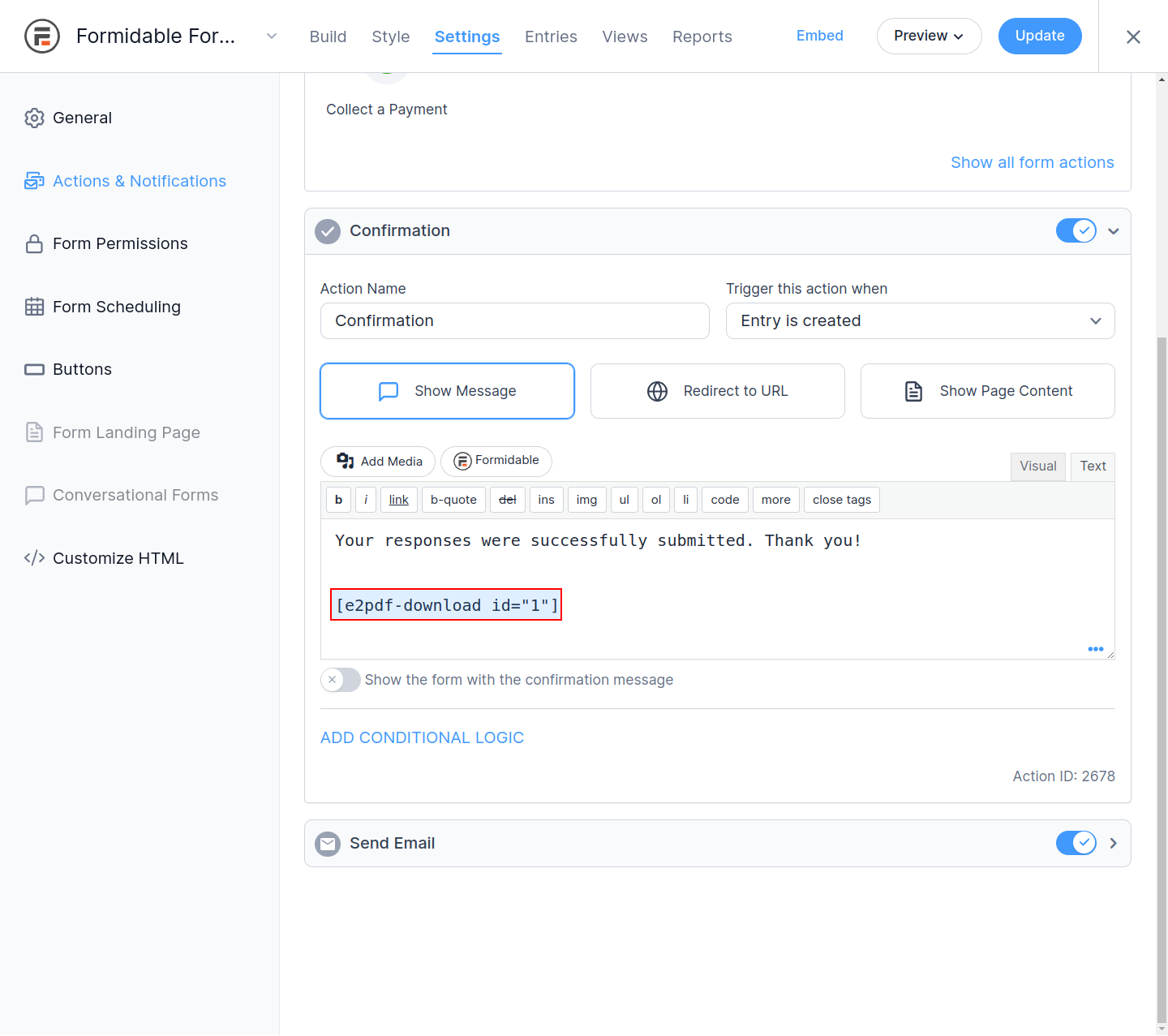
Confirmation Message
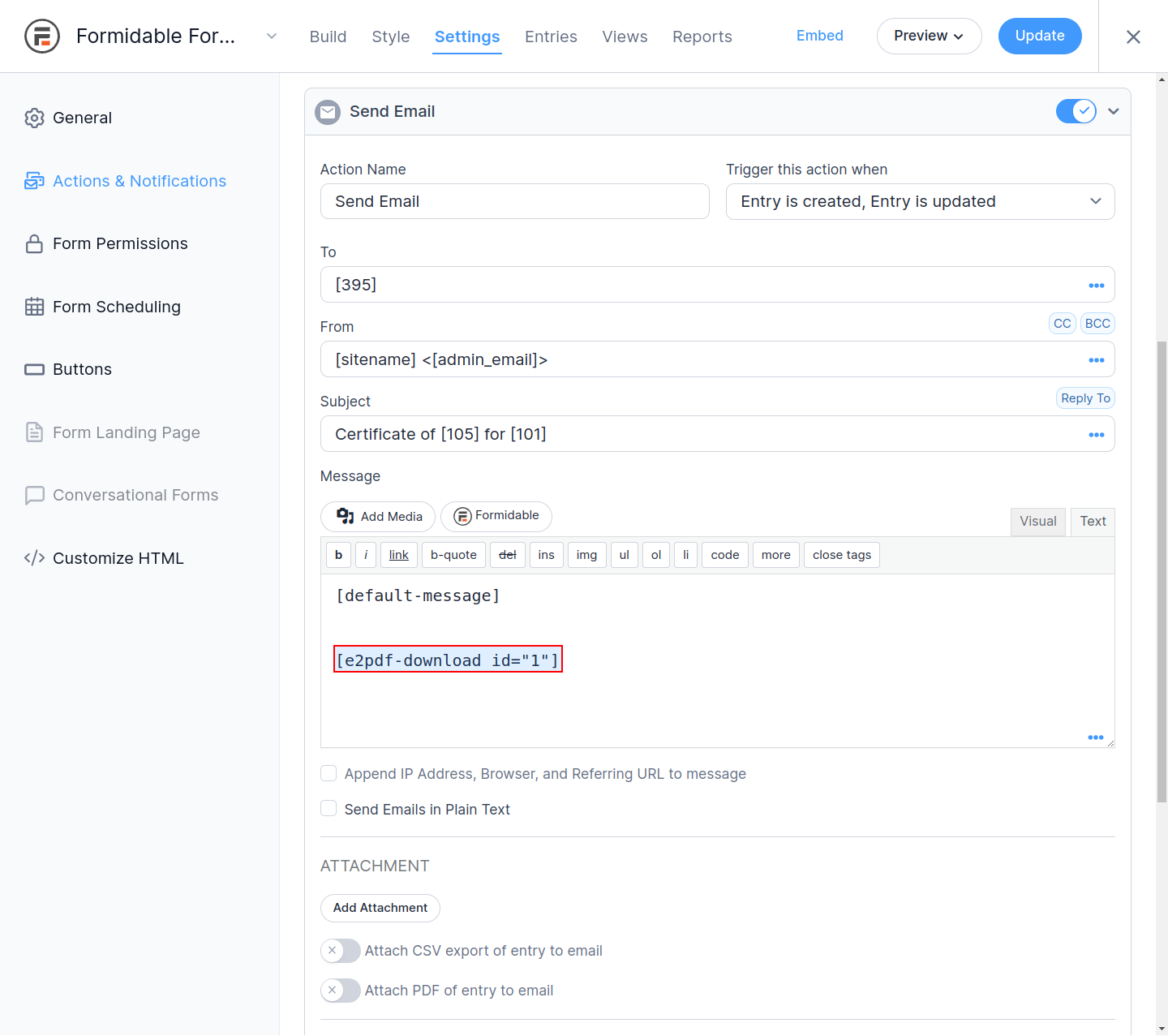
Send Email
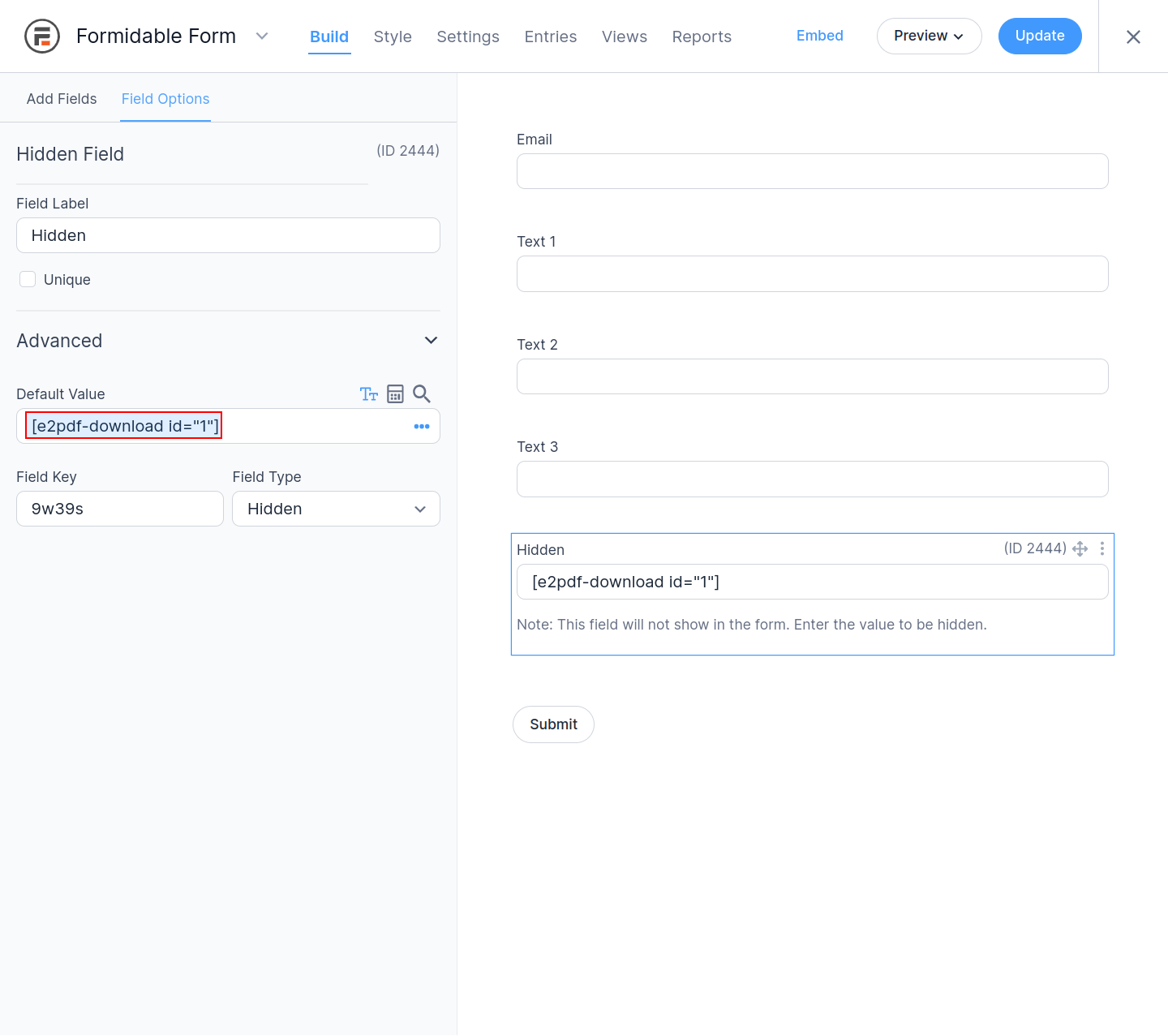
Default Field Value
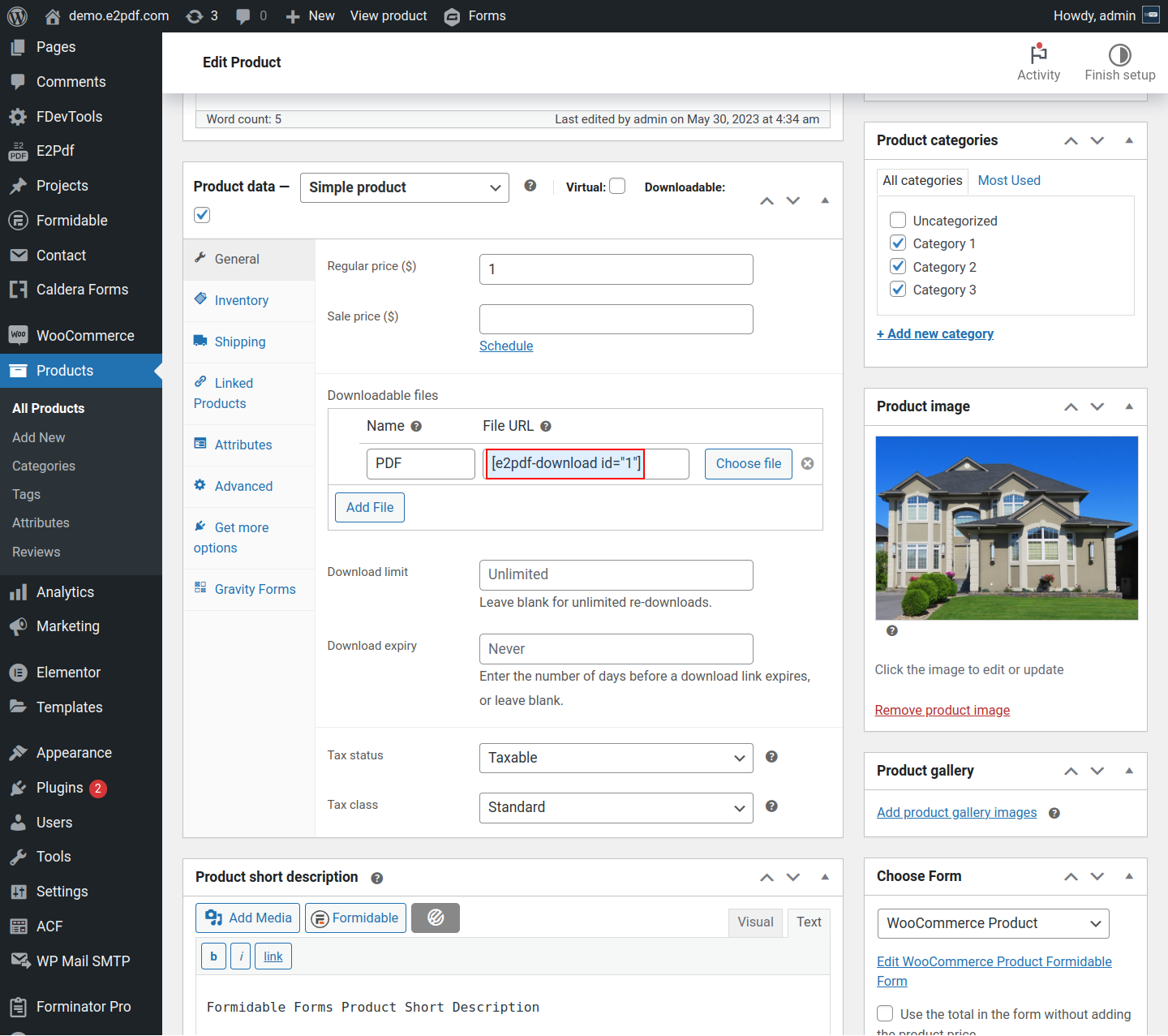
WooCommerce Product File URL
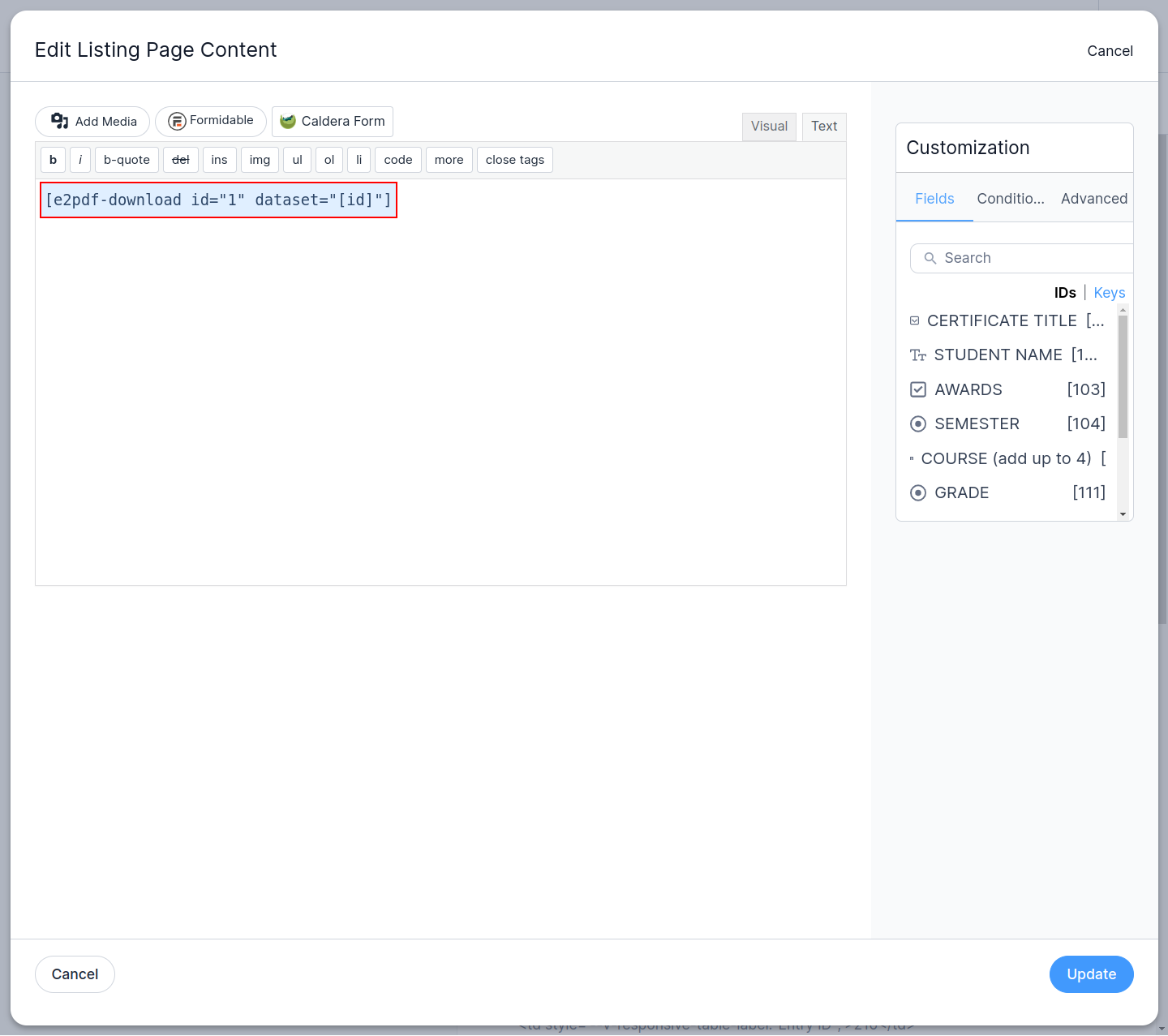
Formidable Forms View
[e2pdf-attachment] #
Shortcode is applied to generate PDF and attach it to the email as an attachment. Read More ››
-
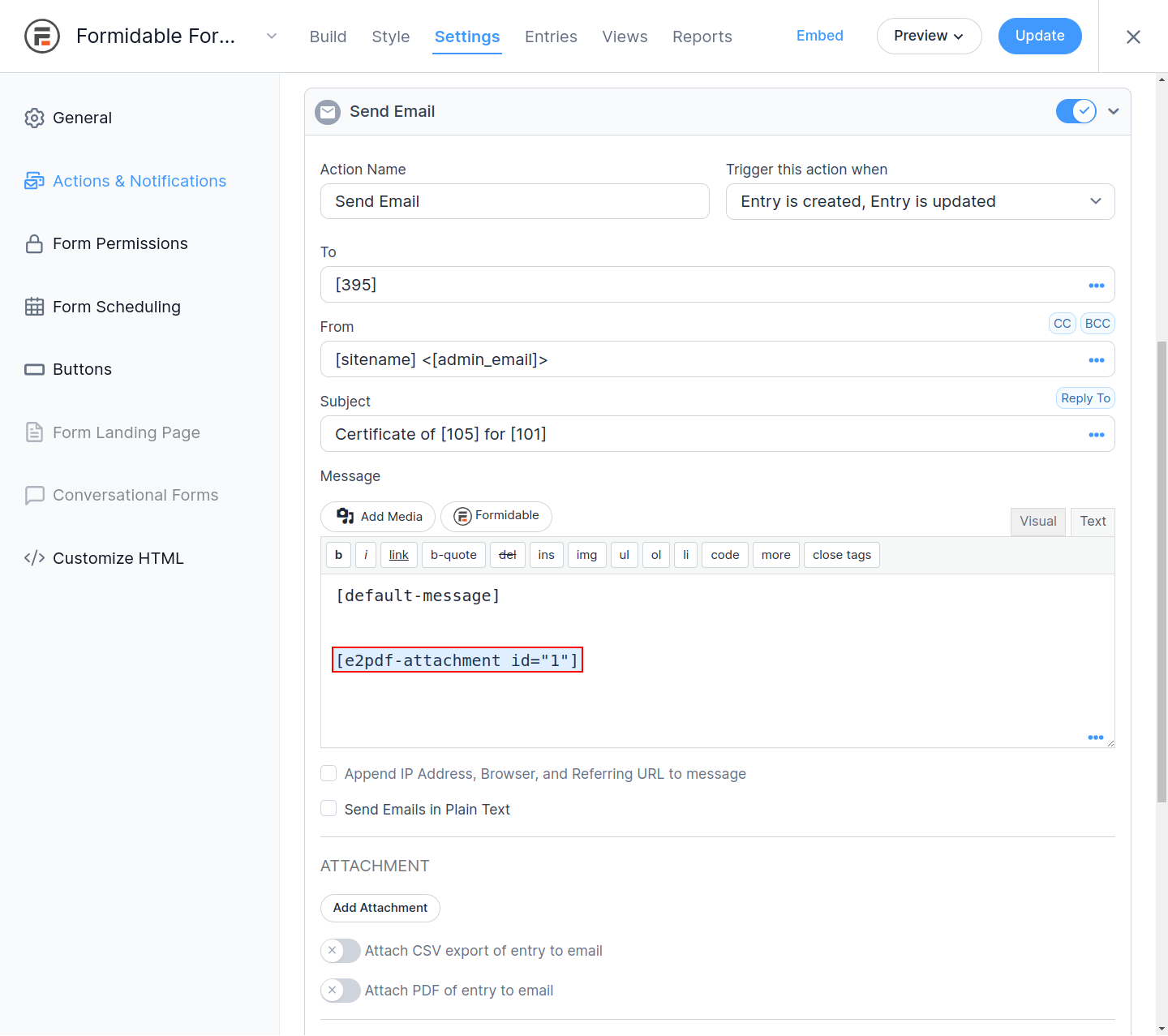
Send Email
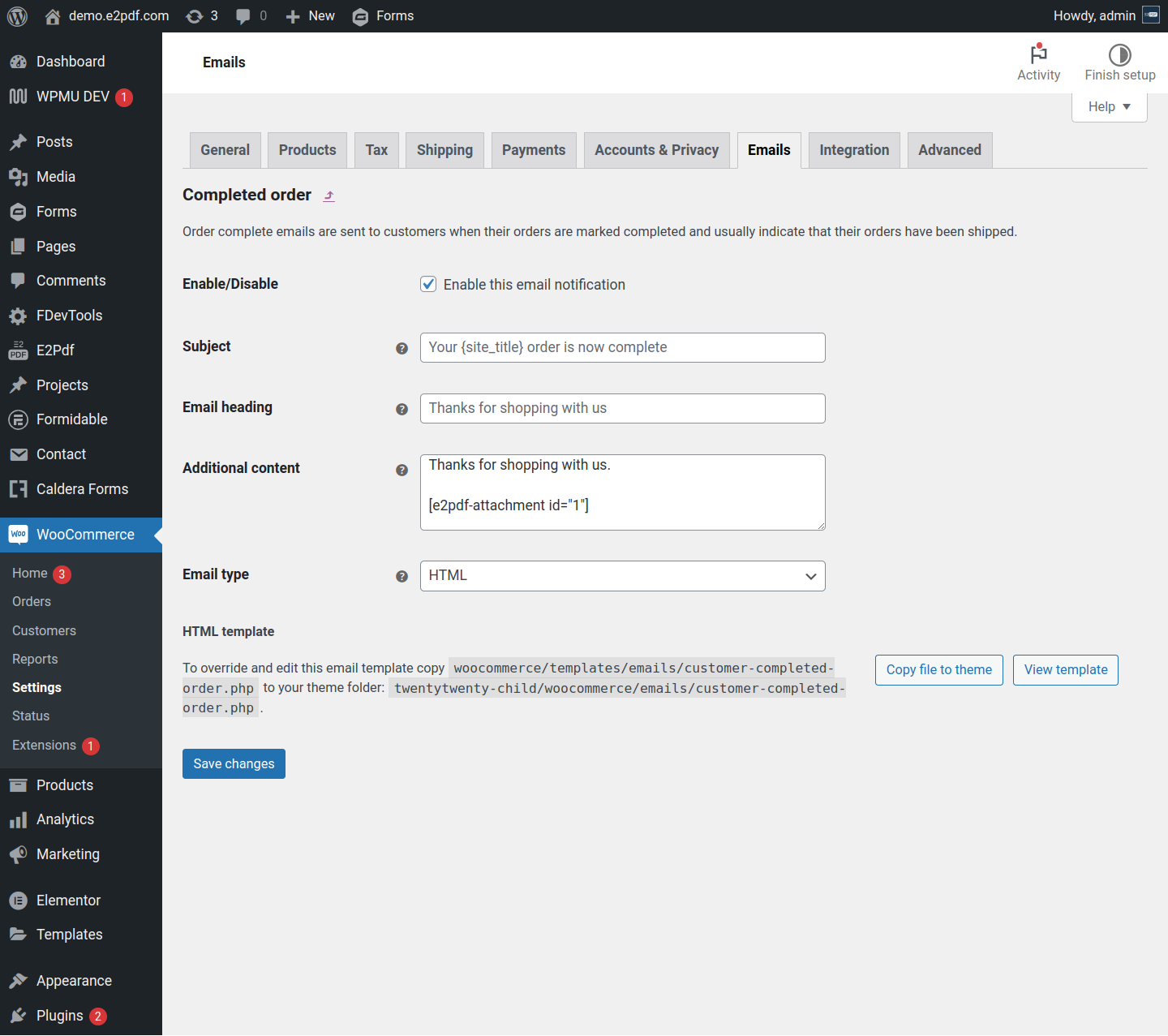
WooCommerce Email Additional Content
[e2pdf-view] #
Shortcode is applied to insert PDF to the page via pdf.js viewer. Read More ››
-
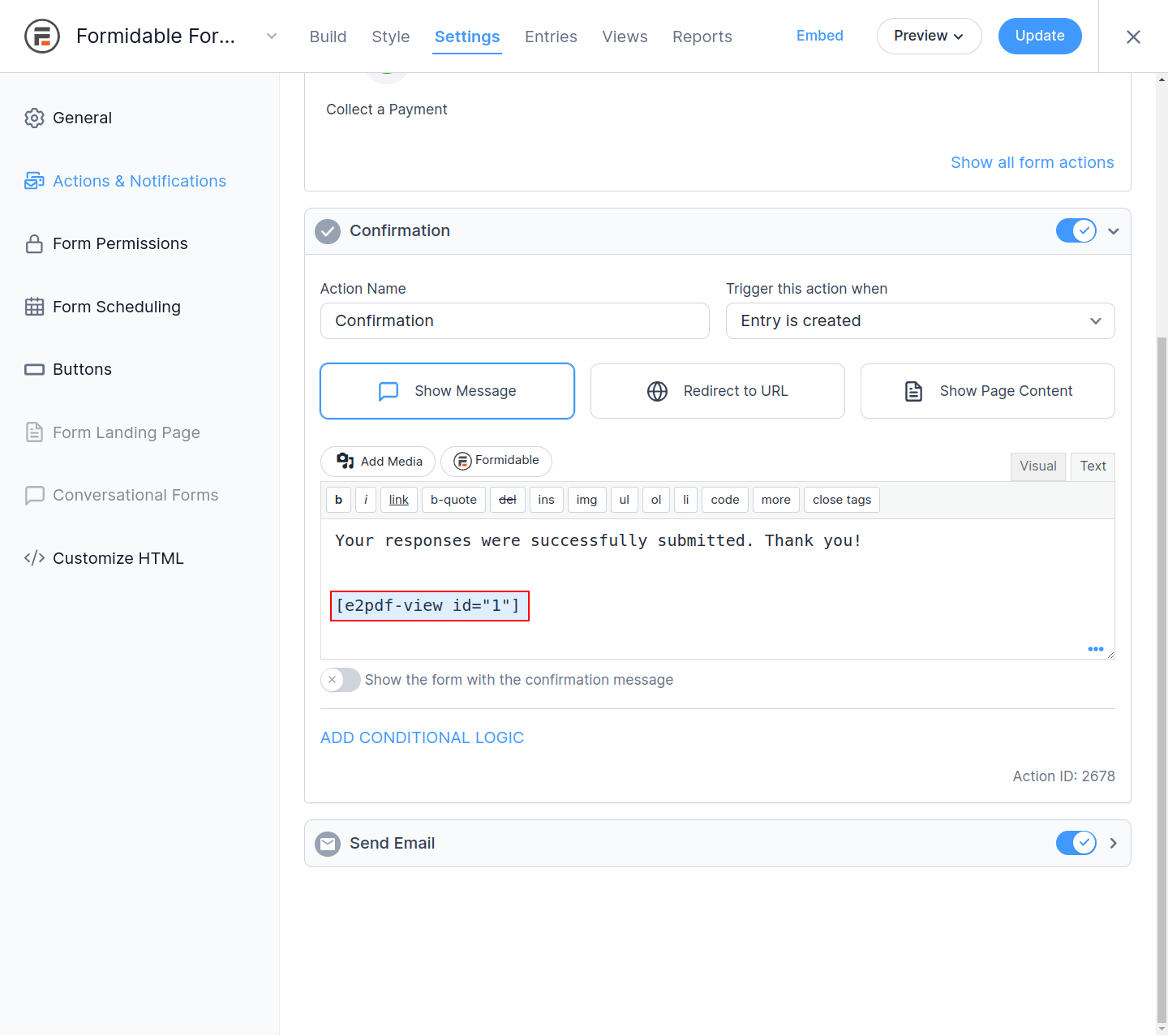
Confirmation Message
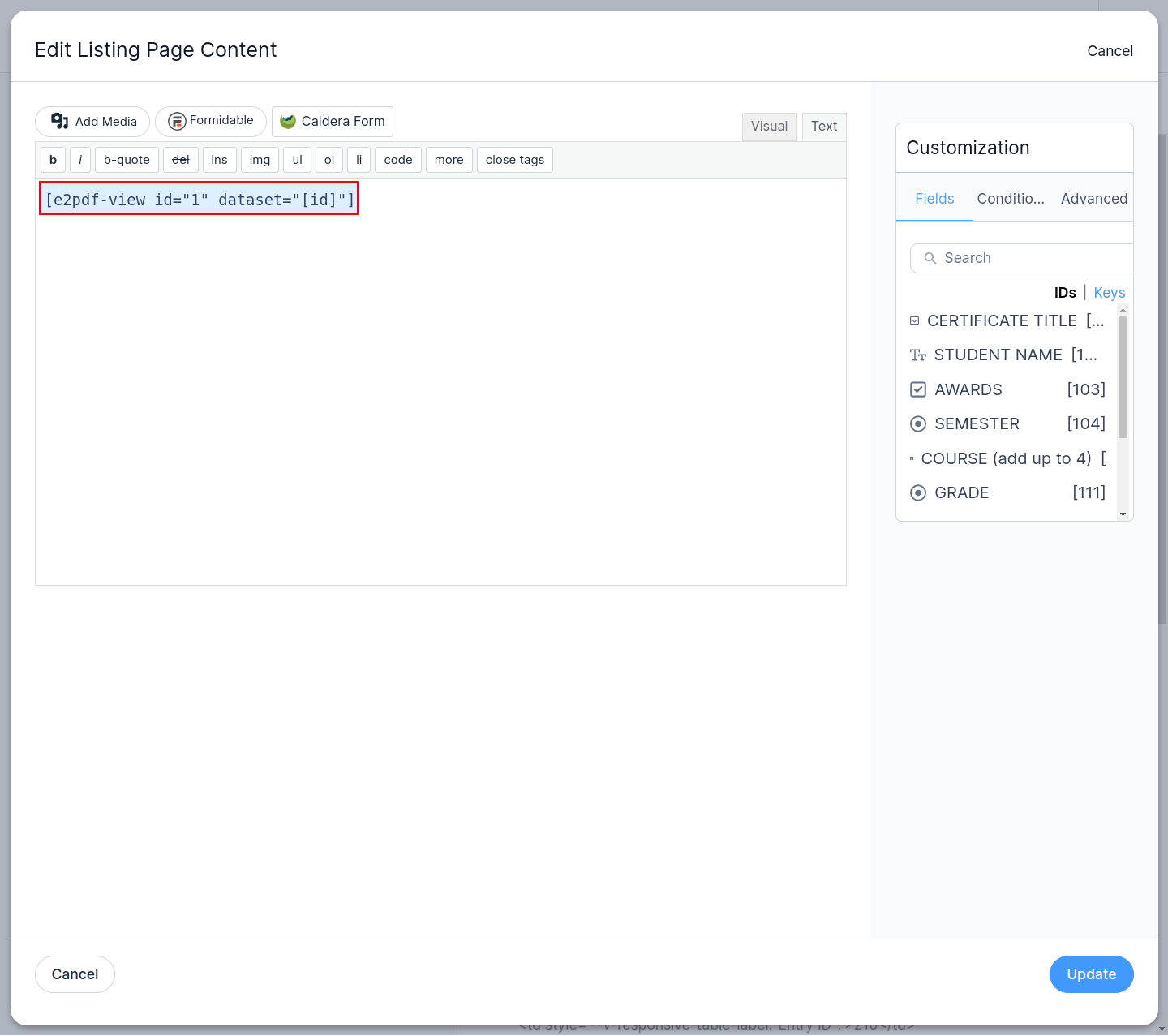
Formidable Forms View
[e2pdf-save] #
Shortcode is applied to save PDF file on the server. Read More ››
-
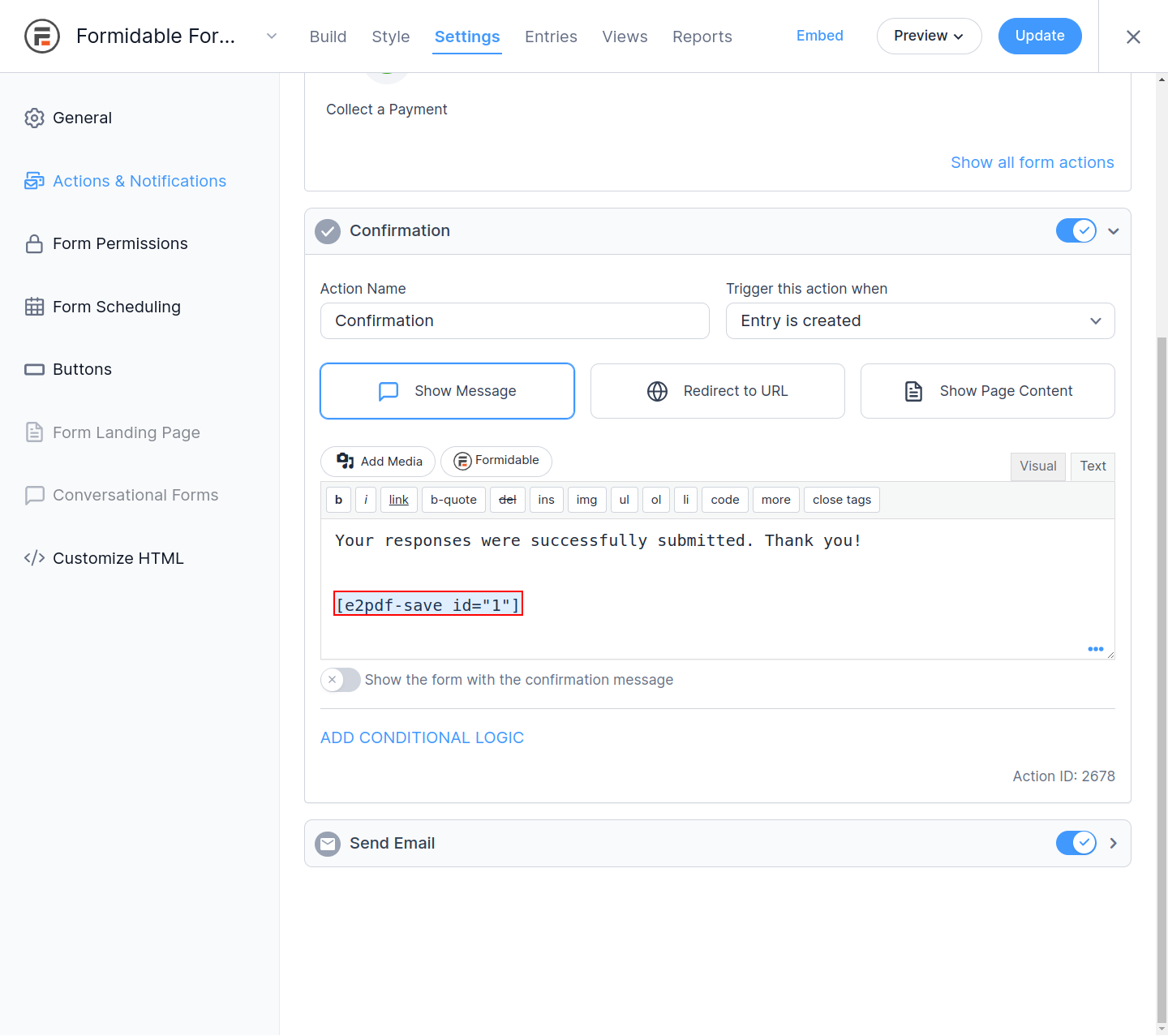
Confirmation Message
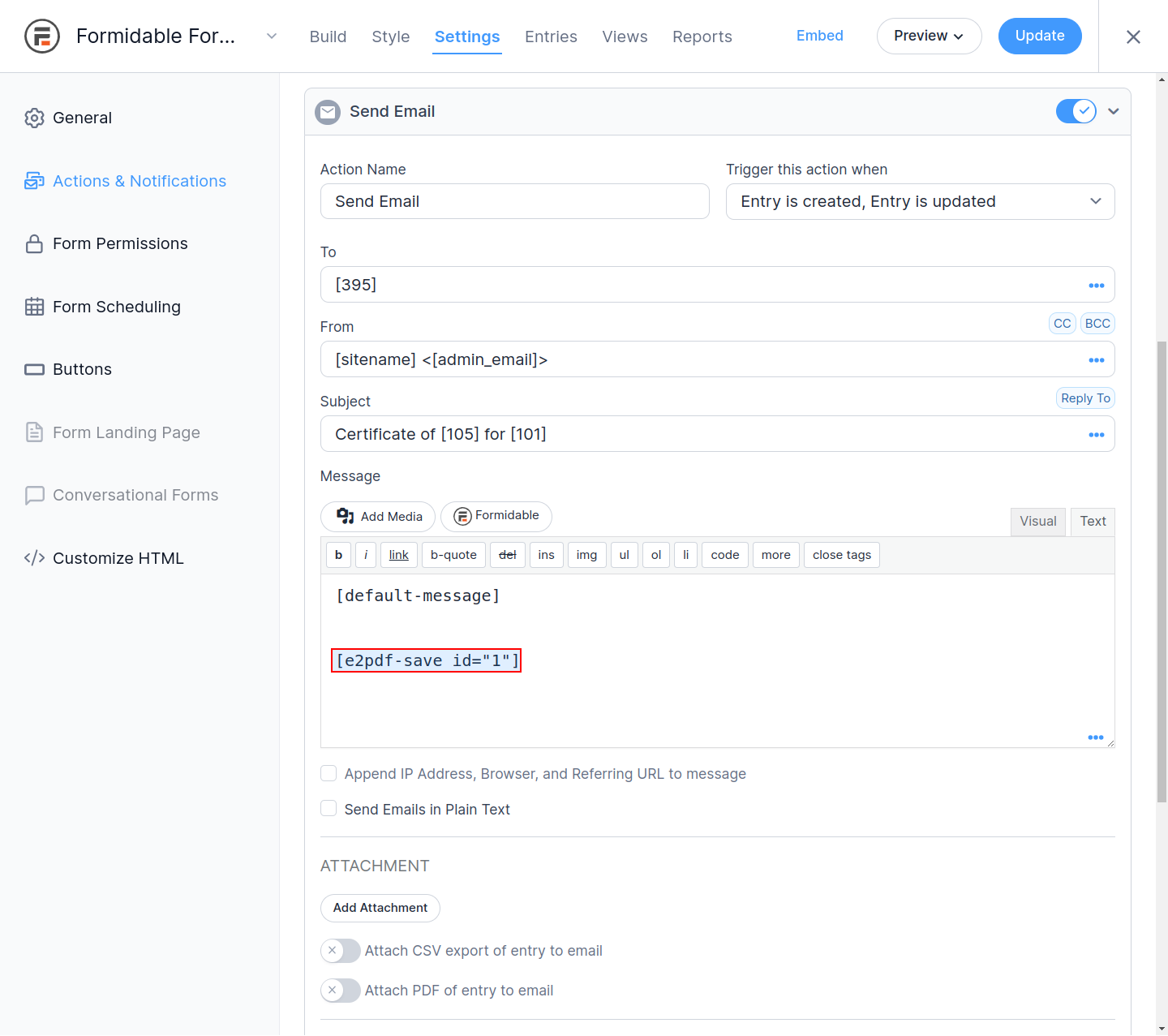
Send Email
[e2pdf-zapier] #
Shortcode is applied to generate and send Zapier request via WebHook. Read More ››
-
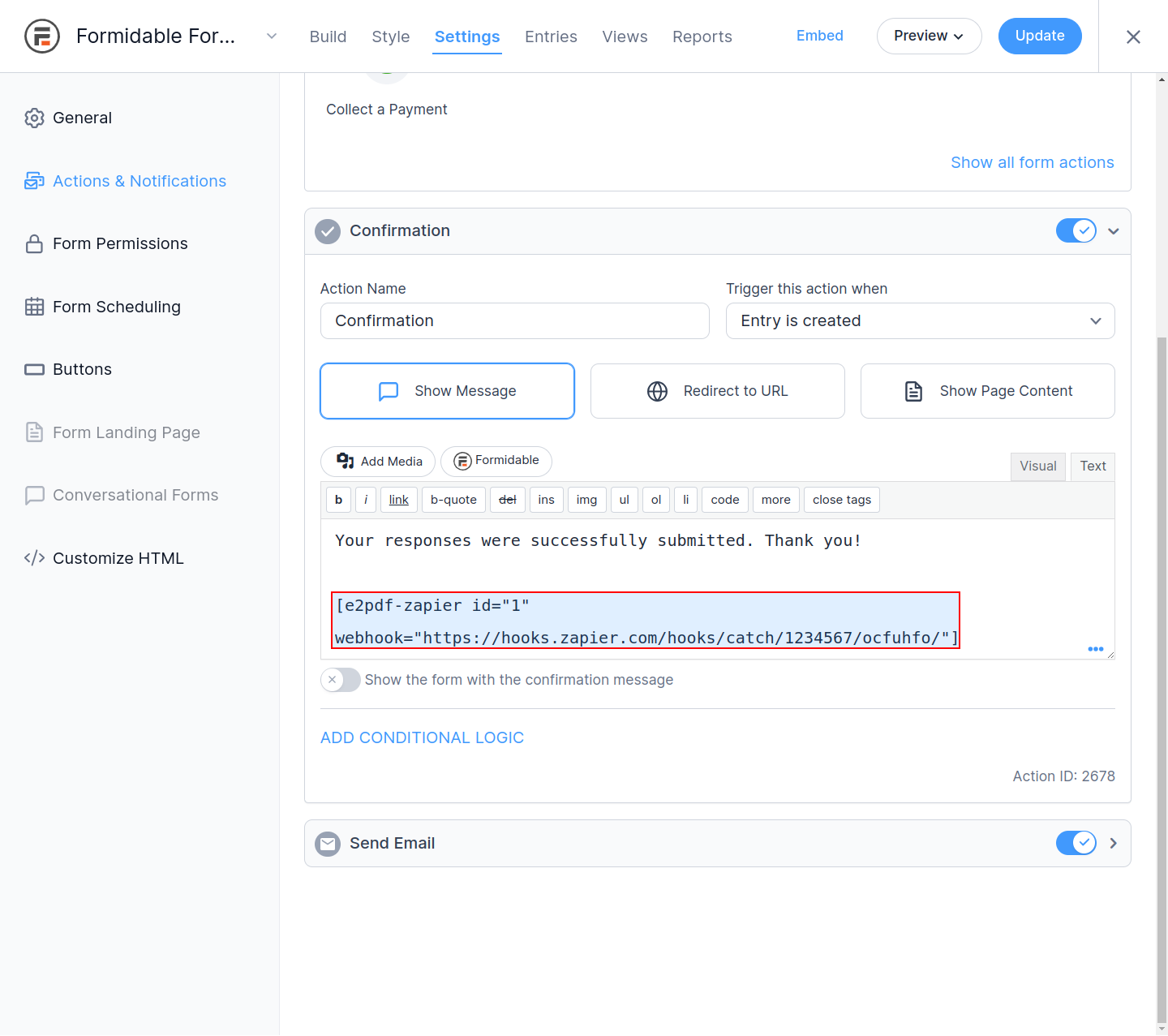
Confirmation Message
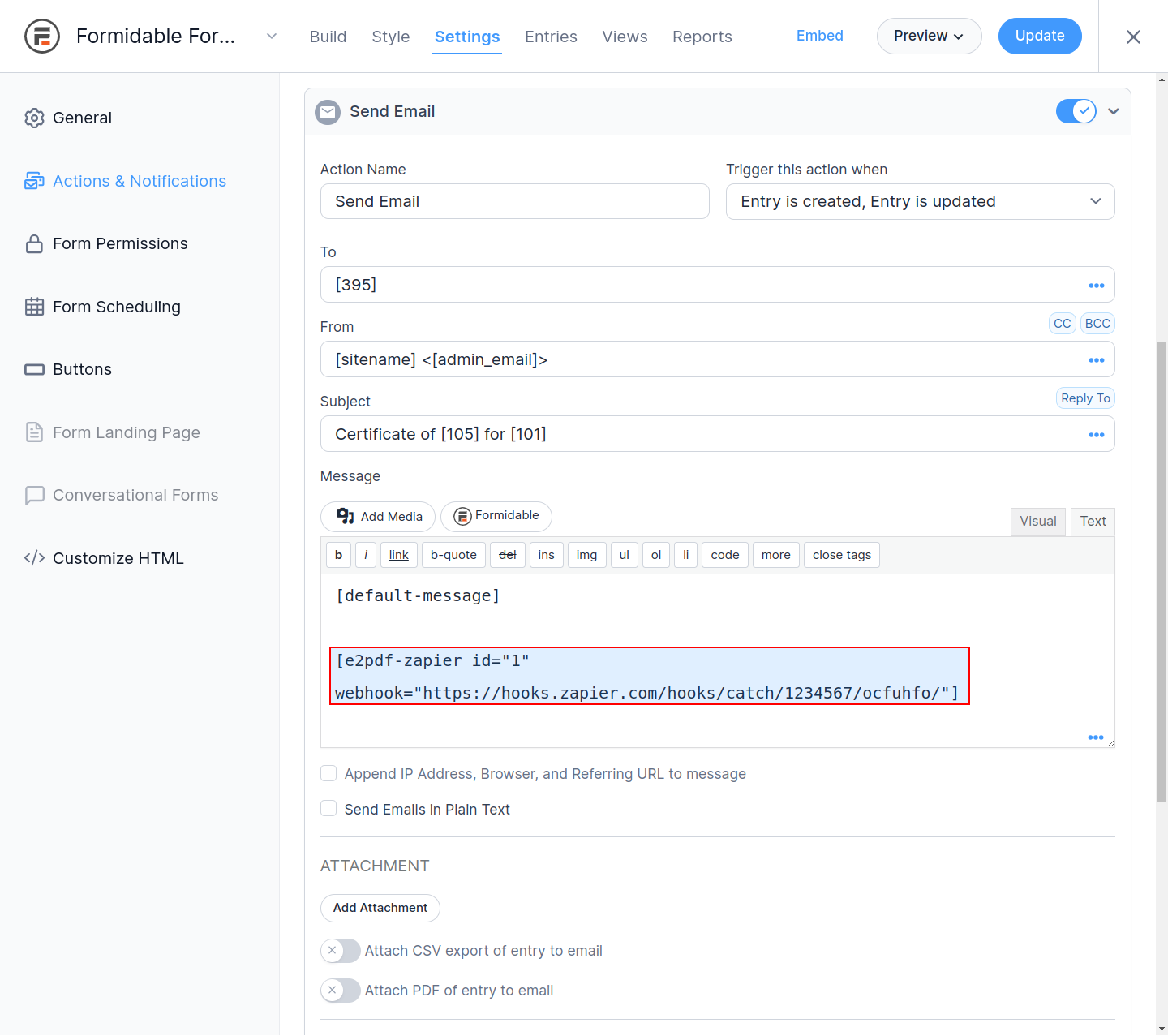
Send Email
Settings #
Formidable Forms Additional Settings available at E2Pdf -> Settings -> Formidable Forms
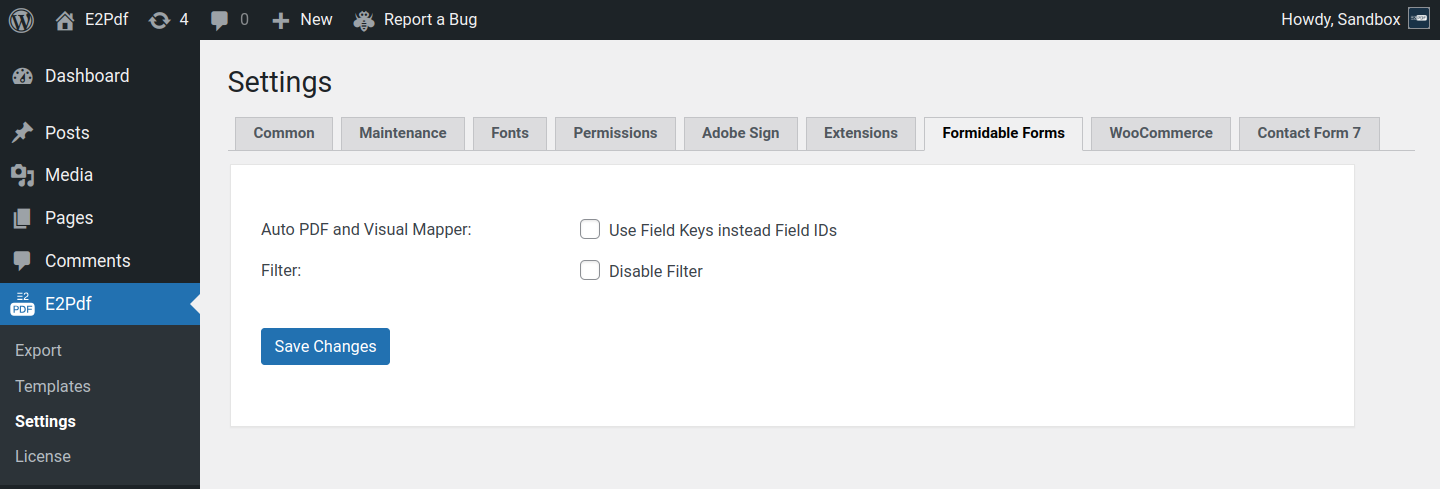
- Auto PDF and Visual Mapper - Force to use Field Keys instead of Field IDs for Auto PDF and Visual Mapper.


