
General
Usage
Global Shortcodes #
- [e2pdf-download]
- [e2pdf-attachment]
- [e2pdf-view]
- [e2pdf-save]
- [e2pdf-zapier]
- [e2pdf-adobesign]
- Access Check
Helper Shortcodes #
Logic Shortcodes #
Extensions #
- Caldera Forms
- Contact Form 7
- Divi Contact Forms
- Elementor Forms
- Everest Forms
- Fluent Forms
- Formidable Forms
- Forminator Forms
- Gravity Forms
- JetFormBuilder
- MetForm
- Ninja Forms
-
WooCommerce
- WordPress
- WPForms
Templates #
Elements #
PDF Builder Elements #
- Input
- Textarea
- Checkbox
- Radio
- Select
- Signature
-
Html
- Image
- Rectangle
- Link
- QR Code
- Barcode
- Graph
- Page Number
Actions & Conditions #
Shortcodes Access Check (E2Pdf 2.x)
E2Pdf 2.x adds extra security and permission checks. One of these improvements is the new Access Check option, which checks E2Pdf shortcodes before a PDF is generated, viewed, saved or sent. It helps protect your PDFs and their data, and lets you control which folders, websites and webhooks E2Pdf shortcodes can use.
New installations of E2Pdf have Access Check enabled by default. After an upgrade from E2Pdf 1.xx.xx, Access Check is disabled by default: check Before You Enable, then follow How to Enable.
How It Works #
- When Access Check is enabled, E2Pdf checks these shortcodes before they run. If the check fails, the shortcode shows nothing.
- Most sites don't need any changes. Shortcodes in form confirmation messages, notification emails and WooCommerce keep working, because E2Pdf already knows which entry or order they belong to.
Before You Enable #
- Skip this step unless your shortcodes use the dir, pdf, dpdf, site_url, viewer or webhook attribute.
- Writable Folders: E2Pdf -> Settings -> Permissions. If you save PDFs with [e2pdf-save] to your own folder with the dir attribute, add this folder. One folder per line.
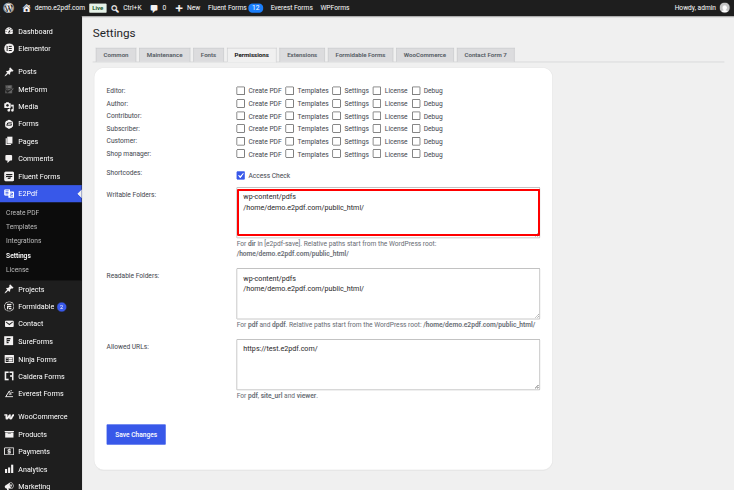
Writable Folders
- Readable Folders: E2Pdf -> Settings -> Permissions. If you use a PDF file from your server with the pdf or dpdf attribute, for example in [e2pdf-download], [e2pdf-view] or [e2pdf-attachment], add its folder. One folder per line.
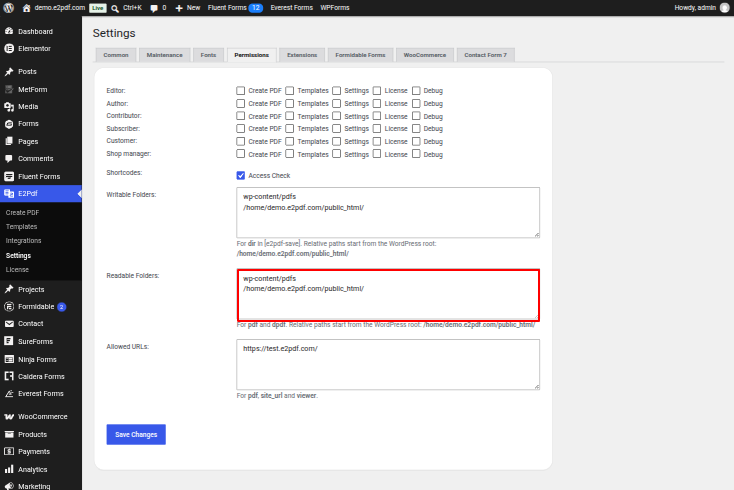
Readable Folders
- Allowed URLs: E2Pdf -> Settings -> Permissions. If you use a link to another website with the pdf, dpdf, site_url or viewer attribute, add this link. One link per line.
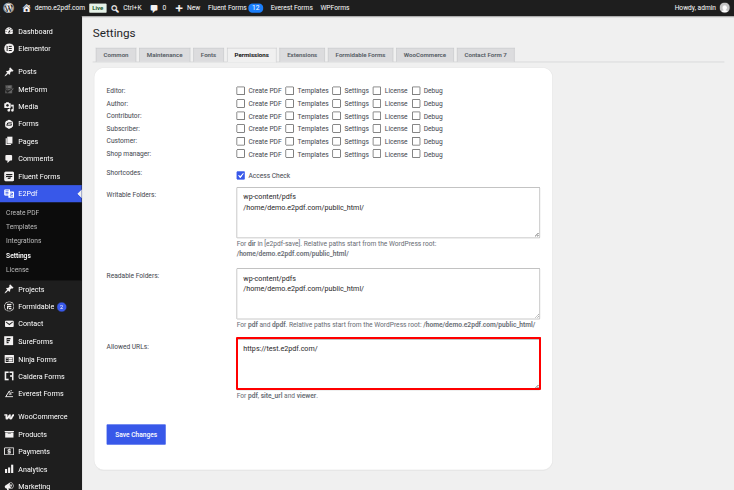
Allowed URLs
- Webhooks: E2Pdf -> Integrations -> Zapier. If you send data with [e2pdf-zapier] or [e2pdf-save] to your own webhook with the webhook attribute, add this webhook. One webhook per line.
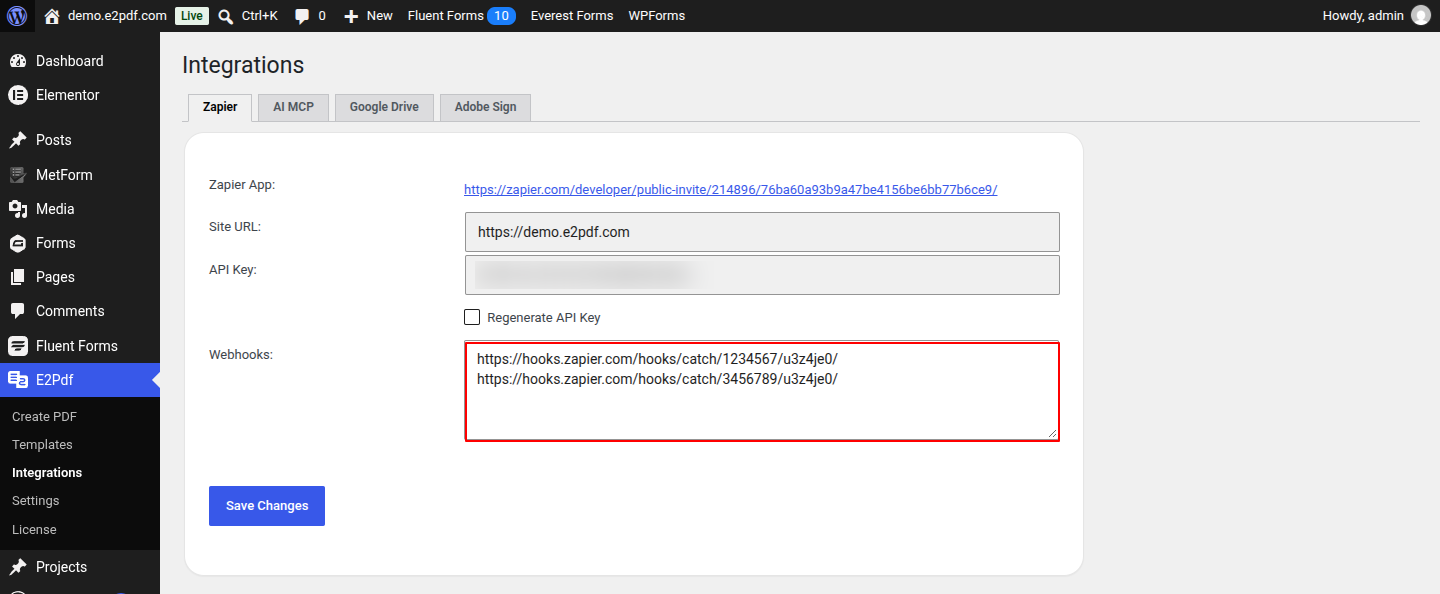
Webhooks
How to Enable #
- Step 1. Enable Access Check in your templates:
- Single Template: E2Pdf -> Templates -> open the template -> Settings -> Security -> Access Check.
- Multiple Templates: E2Pdf -> Templates -> select the templates -> Bulk Actions -> Enable Access Check.
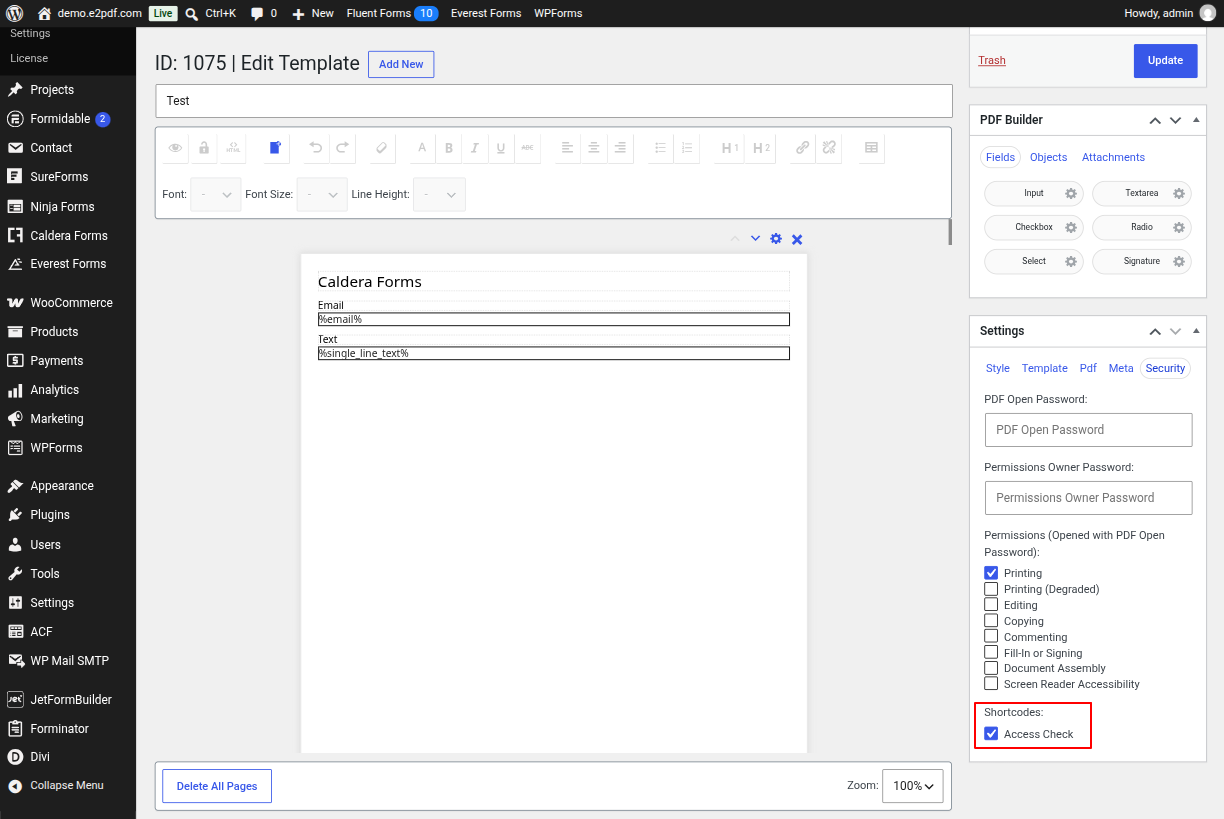
Template Access Check
- Single Template: E2Pdf -> Templates -> open the template -> Settings -> Security -> Access Check.
- Step 2. Test your forms and pages as a visitor, not as an administrator:
- Guests: A private browser window without logging in.
- Users and Customers: A test user account with the same role.
If something stops working, see If a Shortcode Stops Working. - Guests: A private browser window without logging in.
- Step 3. Enable the global option: E2Pdf -> Settings -> Permissions -> Access Check. It applies to shortcodes without a template and to new templates.
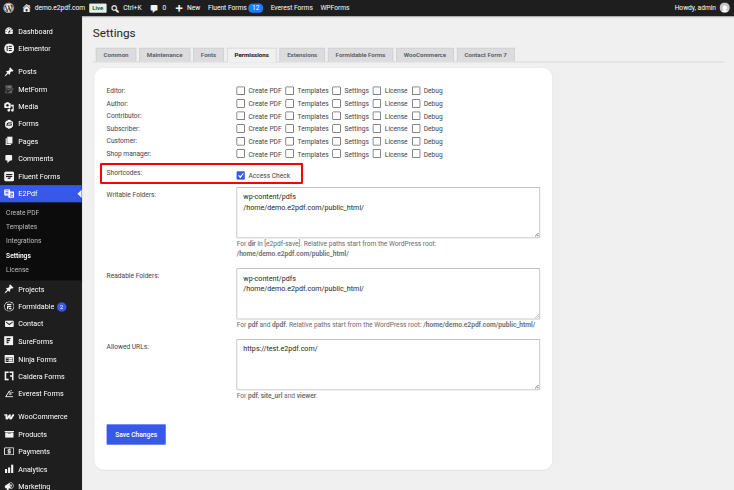
Global Access Check
- Only administrators can change Access Check. Templates with Access Check disabled are marked with a warning icon in E2Pdf -> Templates.
If a Shortcode Stops Working #
- Find what your shortcode uses, and do what is written next to it:
Your shortcode uses What to do dataset in a form message or email, for example dataset="{entry_id}" Remove dataset. E2Pdf adds the submitted entry automatically. dataset, user_id or wc_order_id on a page The visitor gets the PDF only if it's their own entry, user or order. To allow others, use the PHP Filter. dir Add the folder to Writable Folders. pdf or dpdf with a file from the server Add the folder to Readable Folders. pdf, dpdf, site_url or viewer with a link to another website Add the link to Allowed URLs. webhook Add the webhook to Webhooks. - Still not working? Contact E2Pdf support.
PHP Filter #
- Allow a shortcode that doesn't pass the check. For example, allow [e2pdf-download id="1" dataset="5"] for all visitors:
- Allow a shortcode that runs from your own PHP code:


